Why your Shopify store is slow and what to fix first
A plain-English guide for Shopify store owners: how to test your store’s speed on a phone, what usually slows it down, and the order I fix things in before a big sale.

Most Shopify owners I talk to say the same thing: “My store feels slow, but I don’t know why.” Usually nothing is broken. The store has just collected a bit of weight over the years, an app here, a slider there, a few tracking tools, and nobody ever took anything off.
With Black Friday on November 27, now is a good time to sort that out. Below is how I check a store, what I usually find, and the order I fix things in. You don’t need to write code for most of it.
Test your store the way shoppers see it
Most of your shoppers are on a phone, often on a mobile connection, so test on mobile. Open Google’s PageSpeed Insights, paste your homepage address and press Analyze. Then do the same for one collection page and one product page, because those are where people decide to buy.
Shopify also has its own speed report in your admin, under Online Store and Themes. It’s based on the same kind of test, so it’s a handy way to keep an eye on things over time.
To show you what the report looks like, I ran it on Shopify’s own demo store. This is a clean store with no apps and almost no content.
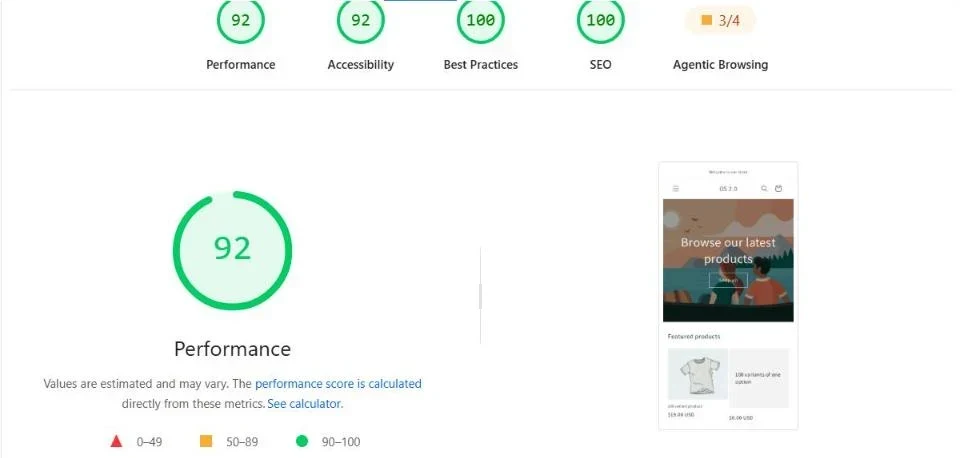
It scores 92 on mobile, which is good. But look at the numbers underneath, because those are the ones that matter.
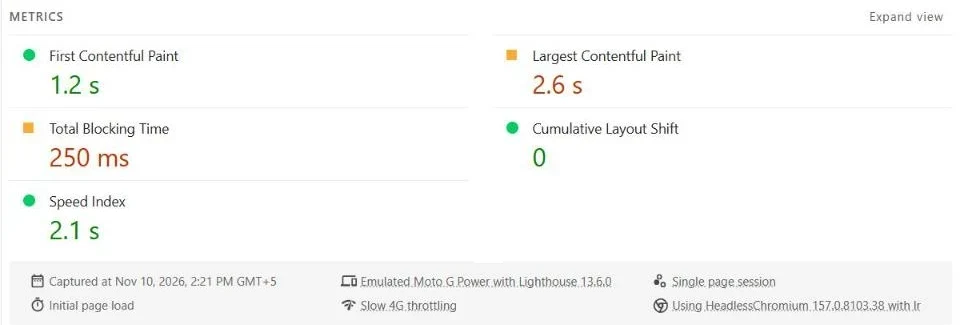
You only need to know three of them:
- Largest Contentful Paint (LCP) is how long it takes for the biggest thing on the screen, usually your main banner image, to show up. Google’s “good” line is 2.5 seconds. Even this clean demo store is a little over it.
- Total Blocking Time (TBT) is how long the page is busy and ignores taps. High numbers usually mean too much JavaScript, which is mostly what apps and tracking tools add.
- Cumulative Layout Shift (CLS) is how much the page jumps around while loading. Zero is perfect, and this store has it.
Scores change a little every time you run the test, so don’t chase one number. Run it two or three times, write the results down, and compare before and after each change you make.
What usually slows a Shopify store down
Apps you installed and forgot about
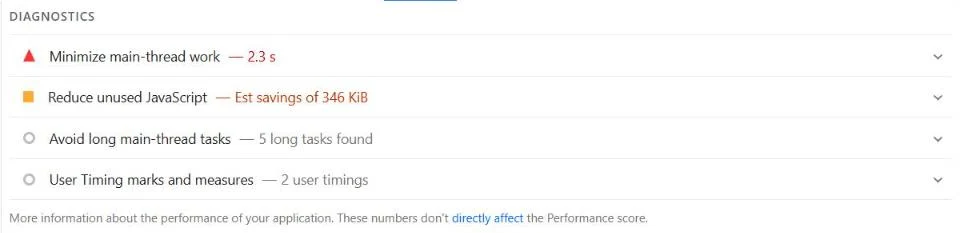
This is the most common one. Many apps add their own scripts to every page, even pages where they do nothing. Reviews, popups, chat, upsells and loyalty tools are all fine on their own. Ten of them together are not. Some older apps also leave code in the theme after you uninstall them, so removing the app doesn’t always remove the weight.
A hero image that is too heavy
The big banner at the top of the homepage is usually the largest thing on the page, which makes it the main reason your LCP is slow. Shopify resizes and compresses images for you, but it can’t help if the original is huge or if the theme loads it later than it should. A banner that was exported at 6000 pixels wide for a phone screen is a classic.
Sliders, autoplay video and popups
A slider with five large images loads five large images. An autoplay background video can outweigh the rest of the page. Popups that appear after a second add more scripts. A single strong image with a clear button usually sells just as well and loads much faster.
Too many tracking tools
Analytics, ad pixels, heatmaps, session recording and chat widgets each add a script. It’s common to find the same pixel installed twice, once by an app and once in the theme. Every tool should have a reason to be there.
Fonts and homepage sections
Three custom fonts with several weights each add up. So do homepage sections nobody scrolls to. A long homepage with a dozen sections makes the browser load a lot that most visitors never see.
What I fix first, in order
The order matters, because the early steps are free and the later ones take time. Test after each step so you know what helped.
- Remove apps you don’t use. Go through your app list and be honest about which ones earn their place. Then ask your developer to check the theme for leftover code from apps you’ve already removed.
- Fix the main banner. Make sure the image is sized for how it’s shown, compressed, and not set to load lazily when it’s the first thing on the screen. Lazy loading is great for images further down the page and bad for the first one.
- Replace sliders and autoplay video above the fold with one image. You can keep the video further down, where it won’t hold up the first view.
- Clean up tracking. Keep what you actually look at, remove duplicates, and let your developer move the rest to load after the page is usable.
- Reduce fonts and homepage sections. One or two fonts is plenty, and the homepage should lead to your collections, not show everything at once.
- Only then think about the theme. A well-made theme is rarely the main problem. If you’ve done all of the above and the store is still slow, a lighter theme or some custom theme work can help, but it’s the last step, not the first.
What to leave alone before Black Friday
If the sale is only a few weeks away, be careful. Removing an unused app, shrinking an image and deleting a duplicate pixel are safe. Switching themes, rebuilding the homepage or swapping your review app a week before the sale is not. Make the safe changes now, then freeze the store, as in my Black Friday checklist. Save the bigger rebuild for January, when things are quiet.
Before you remove anything, duplicate your live theme so you have a copy to go back to. It takes a minute and it means a mistake is easy to undo.
When it’s worth getting help
Removing apps and resizing images is something most owners can do themselves. Finding leftover code in the theme, reordering scripts so they don’t block the page, and fixing a heavy theme are developer jobs. If you’d like someone to look at your store and tell you plainly what to fix, I do this as part of my Shopify development and website maintenance work. A short list of what’s slowing the store down, in order of importance, is often all it takes to start.
Frequently asked questions
What is a good PageSpeed score for a Shopify store?
Aim for the green range, 90 and above, on a simple store, but don’t be discouraged if yours sits in the 50s to 80s with several apps installed. The three numbers that matter most are how fast the main image appears, how long the page is busy, and whether it jumps around. Improving those is more useful than chasing 100.
Do apps really slow down a Shopify store?
Many of them do, because they add scripts that load on every page. One or two well-chosen apps are usually fine. A long list of overlapping apps, or apps you stopped using, is where stores slow down.
Does Shopify optimize my images automatically?
Shopify’s image delivery resizes and compresses images for you, which helps a lot. It can’t fix an oversized original, an image that loads too late, or a slider full of large pictures, so it’s still worth checking your banners.
Should I change my theme to make my store faster?
Usually not as a first step. Remove unused apps, fix the main banner and trim tracking scripts first, then test again. A new theme before Black Friday also adds risk you don’t need.
Why is my PageSpeed score different every time I test?
The test runs on a simulated phone and connection, and small differences between runs are normal. Test two or three times and compare averages, and always compare before and after a change using the same page.
Senior WordPress and Shopify developer with nine years of experience building and maintaining websites for businesses and agencies worldwide.
More about me